How to use the dryer tools
For curing unit owners — customers, machines and every batch from intake to grade.
- 1
Open the dryer side
/dryer
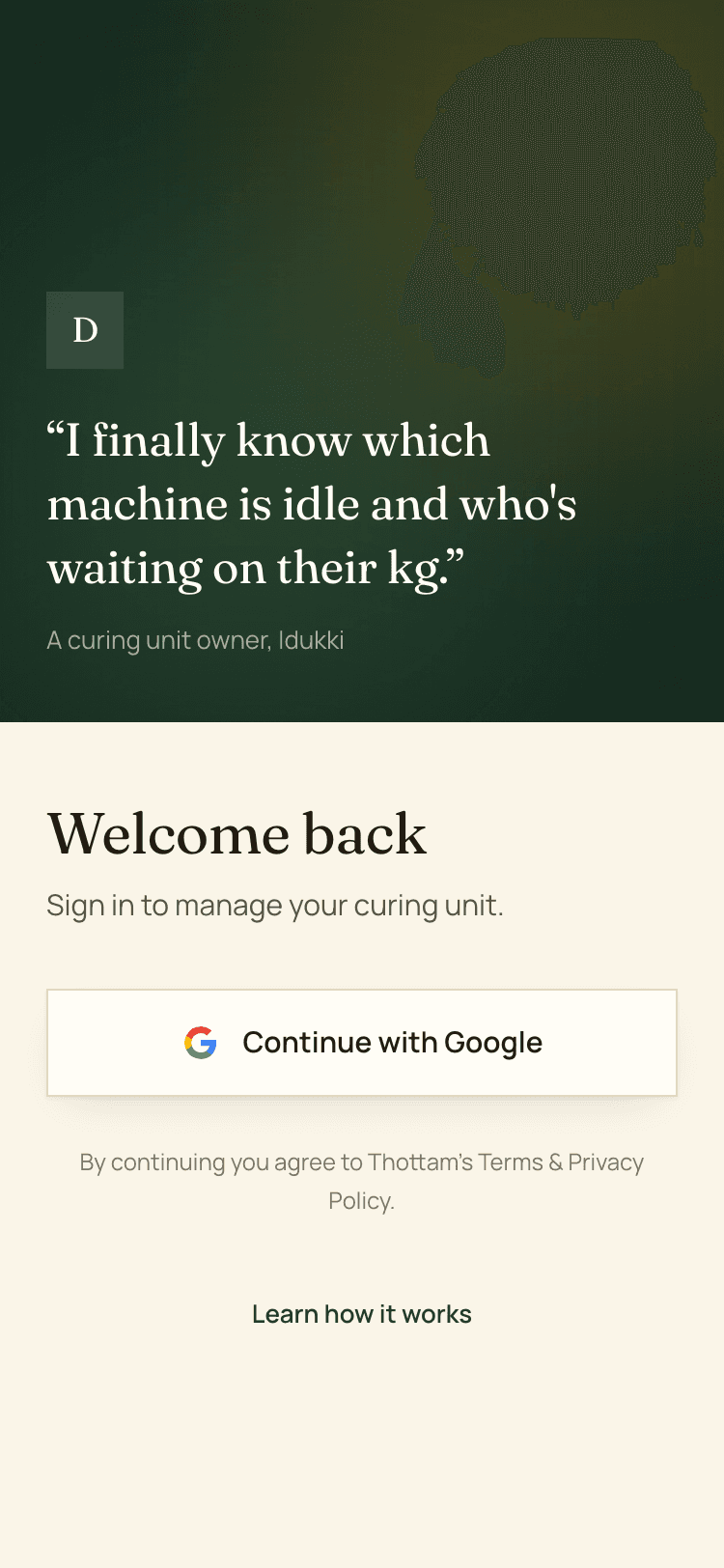
The curing unit tools live at /dryer, separate from the farmer screens. Same Google sign-in — you do not need a second account.
- 2
Add your phone number
Dashboard
Signing in is all the setup there is — you land straight on your dashboard.
The one thing Google cannot tell us is your phone number, so the dashboard asks for it once. A farmer sees that number when you ask to link their account, and without it they have no way to check the request really came from you. You can put it off, and add it later from Business Setup in the menu along with the name of the unit and your rate.
- 3
Add your machines
Machines
The dashboard asks how many drying machines you run and makes them for you, so this is only where you name them and set what each one holds.
Every batch you start gets assigned to one, so you can see at a glance what is tied up and what is free.
- 4
Build your customer list
Customers
Add the farmers who bring you crop, each with a phone number. The number is the key — it is what lets you link a real Thottam account later.
Customers who are not on Thottam still work exactly the same as typed names. Nothing about your ledger depends on them signing up.
- 5
Link a farmer who is on Thottam
Customers → open a customer
If the number you saved matches a farmer registered on Thottam, you can send them a link request.
They approve it from their side. Once approved, the two accounts are connected and what you log starts reaching their records.
- 6
Log crop coming in
Batches → Log intake
Pick the customer, the date in and the raw kilos. Add a note if there is something to remember about the load.
For a linked farmer, that intake also reaches them as a request — they assign it to one of their own fields, so it lands against the right plot in their book.
- 7
Start drying
Batches → Start processing
Choose the machine and the date started. The batch moves from waiting to processing, and the linked farmer sees that status change.
- 8
Mark it done and grade it
Batches → Mark processed
Date out, processed kilos, and quality — good, average or bad.
The batch closes as done. Raw in against processed out is kept alongside every other batch you have run.
- 9
Put it on your home screen
In your phone's browser menu, choose Add to Home screen. The dryer tools then open full screen with their own icon — no app store, no download.