How to use Thottam
For cardamom growers — from first sign-in to reading your year at a glance. Ten steps, and you only ever do the first four once.
- 1
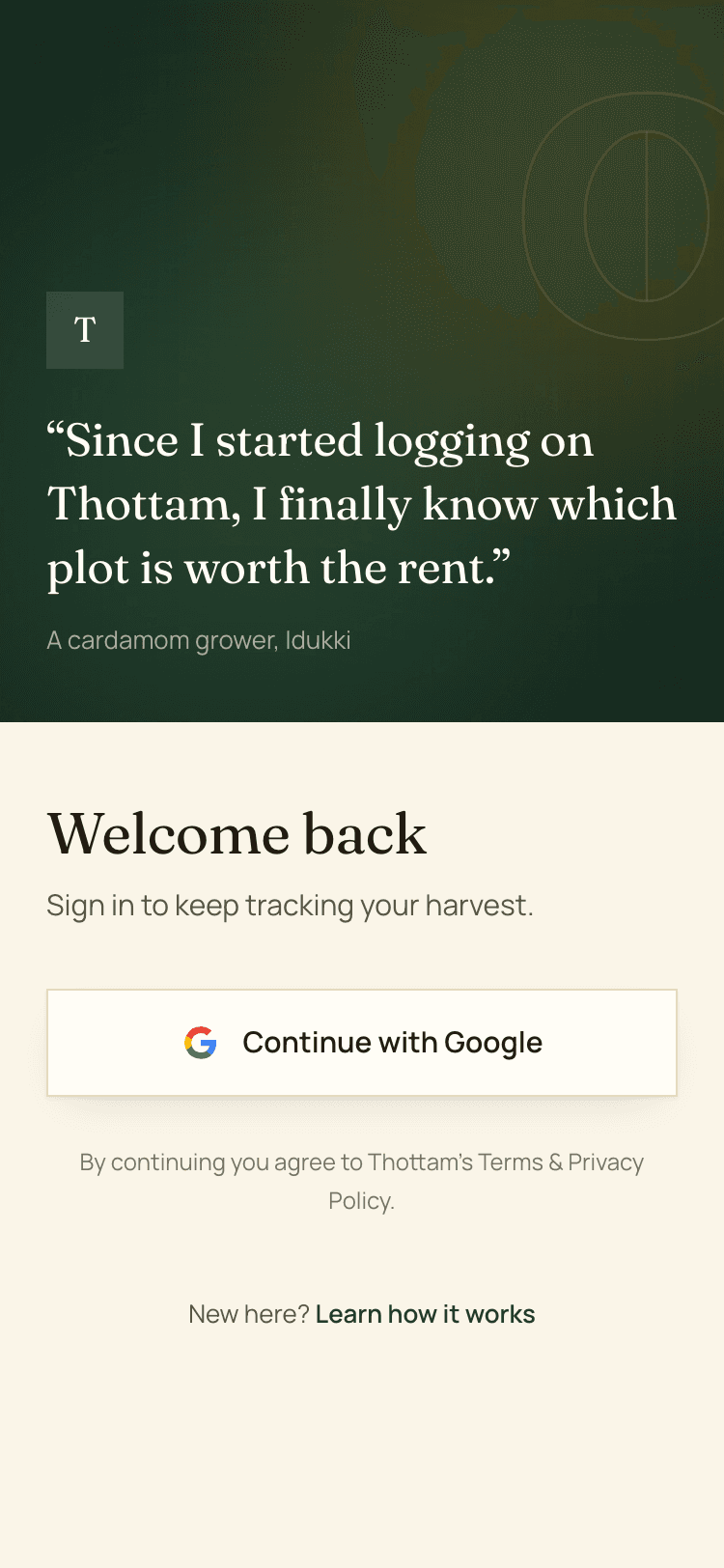
Sign in with Google
Log in
Open Thottam and tap Log in, then pick your Google account. No new password to remember.
Use the same account every time — your farm records sit behind it.
- 2
Add your phone number
Dashboard
Signing in is all the setup there is — you land straight on your dashboard.
The one thing Google cannot tell us is your phone number, so the dashboard asks for it once. It matters: a curing unit finds you by that number, and without it their records cannot reach you. You can put it off, and add it later from More → Farm Setup along with what you call your estate.
- 3
Add your plots
Plots → Add
Add each piece of land you work, with its acreage and location, marked owned or rental. Keeping rental land separate is what lets Thottam tell you later whether a rented plot paid for itself.
Cardamom and pepper are already on your crop list, so you can pick one straight away. Add anything else you grow from More → Crops.
- 4
Add your curing units
More → Dryers
Add the dryers you sell to or dry at, by name and place. These become the choices on the harvest and sale forms, so your records stay tidy. You do not have to — a sale with no dryer is logged as sold direct — and if your curing unit is on Thottam, linking with them adds the dryer for you.
- 5
Log each day's pick
Plots → open a plot → Log harvest
Date, crop, labour count and row kilos picked. If the load was cured, add processed kilos too.
Thottam divides kilos by labour count to show you average per labour, and groups picks into rounds on its own — a gap of more than 14 days starts a new round.
- 6
Record what you sold
Sell History → Log a sale
Date, which dryer, kilos sold and price per kilo. The total is worked out for you.
Sell History is the running ledger — what actually left the estate and what it fetched.
- 7
Track what you spent
Expenses
Date, amount, category — fertiliser, labour, transport, whatever it was. Add a note if you want to remember the detail.
Spend is what turns yield numbers into a real picture of the year.
- 8
Set your reminders
Masters → Reminders
Give the reminder a name, like pesticide spray, and how many days between applications.
Mark it applied each time and the next due date moves forward by itself. What is due shows on your home screen.
- 9
Read the dashboard
Home
The home screen adds it all up: yield for the year, what you sold, what you spent, and how owned land compares with rented.
Use the year selector to look back at earlier seasons.
- 10
Put it on your home screen
In your phone's browser menu, choose Add to Home screen. Thottam then opens full screen with its own icon, like any other app — no app store, no download.